Tour the Leads Hub
A guided tour of every part of the Leads Hub — the table, the toolbars, and the lead drawer.
The Leads Hub is the centre of your daily workflow. It pulls together every lead in your organisation across companies and contacts, lets you slice and filter them, and gives you single and bulk actions to move them through your funnel. This article tours every visible element from top to bottom so you can find what you need without hunting.
Opening the Leads Hub
Open the Leads Hub from the main navigation, or jump there from the dashboard whenever you want to act on leads. The default view is All leads — a single combined table with every lead in your current scope, newest first.
From here you can read at a glance how many leads you have, what status they're in, and what their ICP score looks like. Everything else in this article unfolds from this screen.
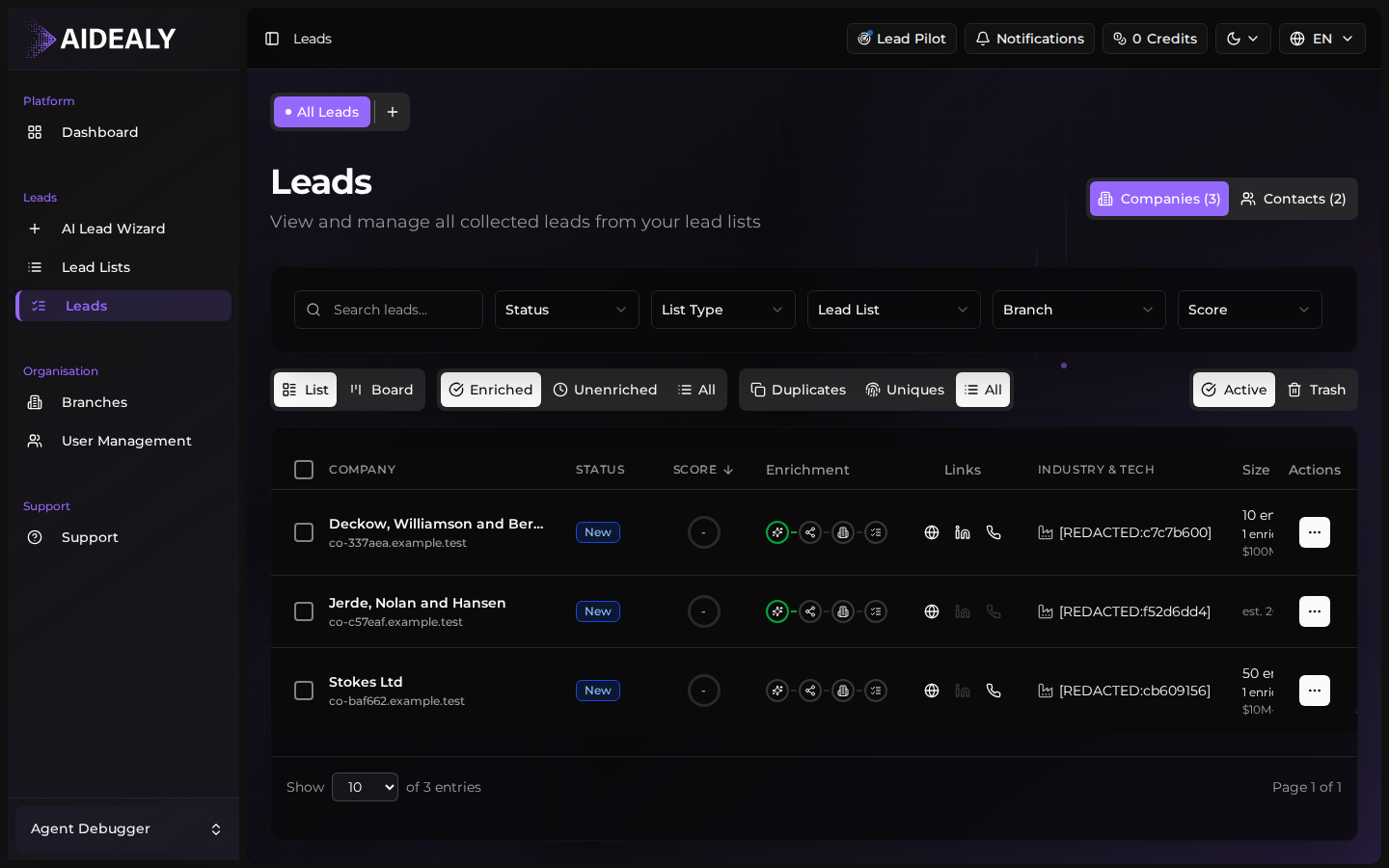
The header bar and view tabs
At the top of the Leads Hub you'll find three things: the page title with a count of leads in the current scope, the view tabs that switch between All, Companies, Contacts and Kanban, and the toolbar with search, filters, sort and bulk actions.
Switching tabs never changes your filters — only how the underlying data is presented. So if you've narrowed to leads scored over 70, that filter still applies when you flip to the Kanban board.
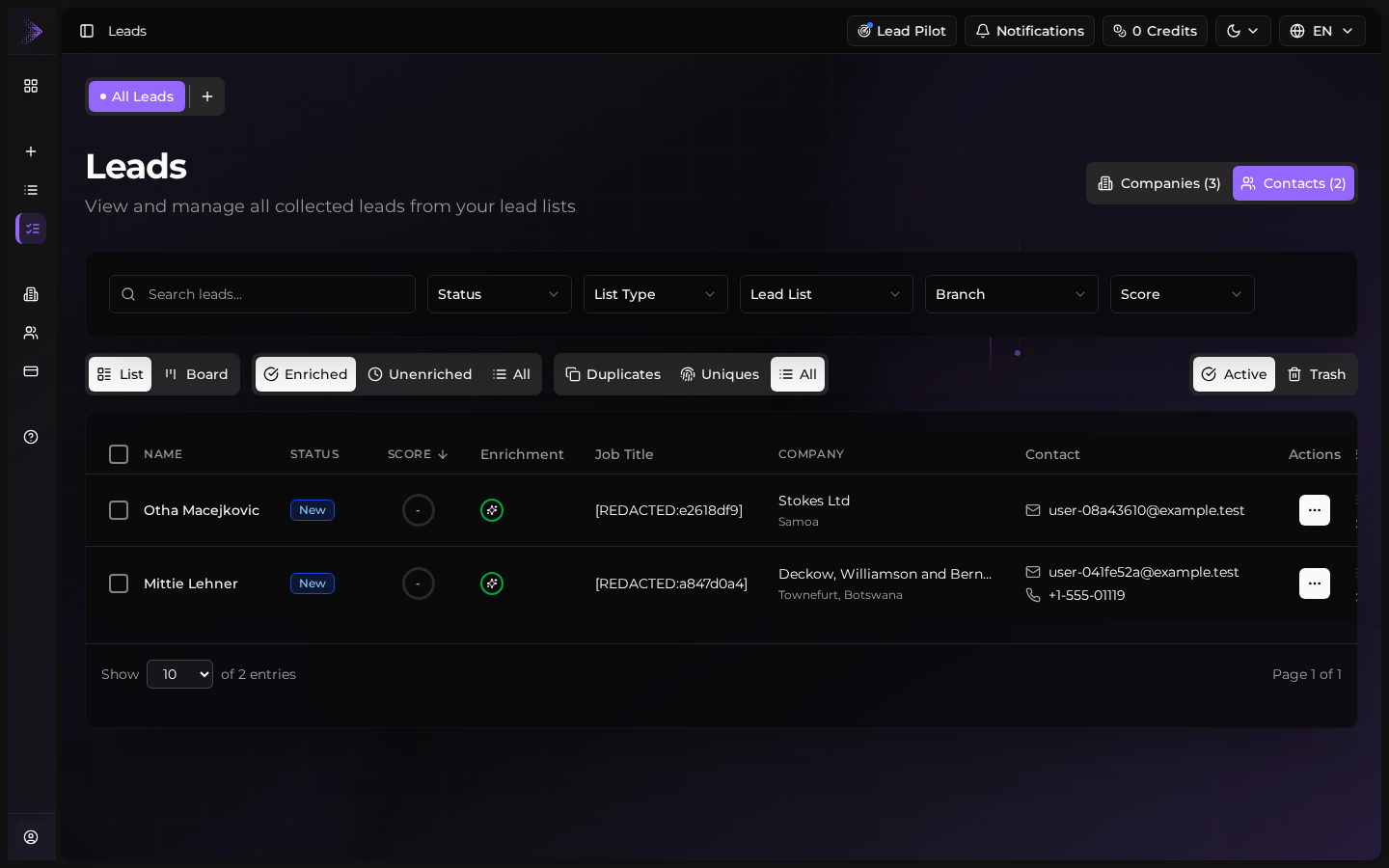
Filters survive view switches
Filters and search terms stay applied as you move between tabs, so you can find a slice of leads once and then look at them in whichever format helps you work — table, board, or split by company versus contact.
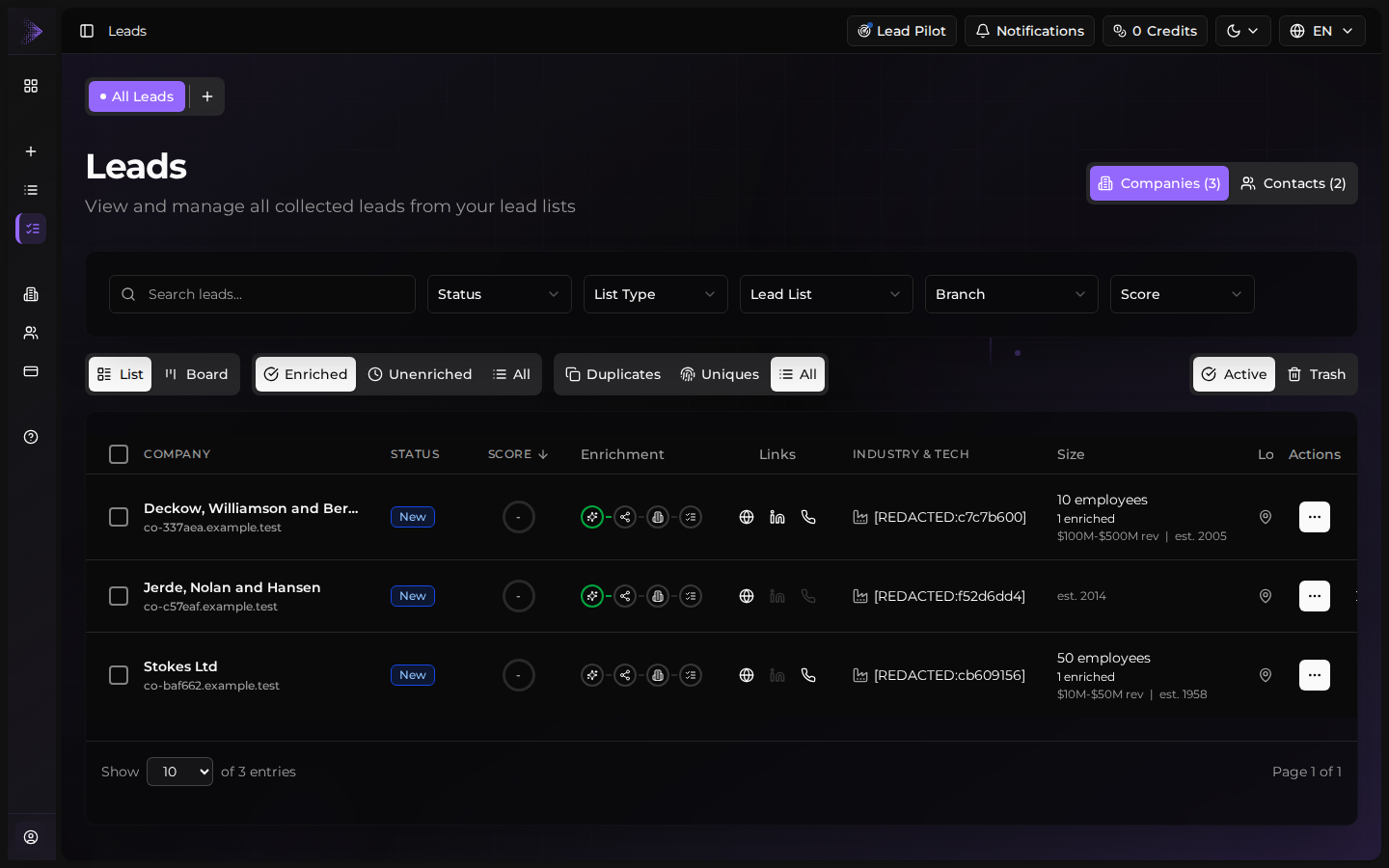
Companies view
The Companies view rolls every lead up to the company level. One row per company, with the ICP score, total contacts found, source Lead List, and last enrichment time visible at a glance.
This is the view to use when you're prioritising accounts — deciding which logos are worth a real outreach push and which ones to deprioritise.
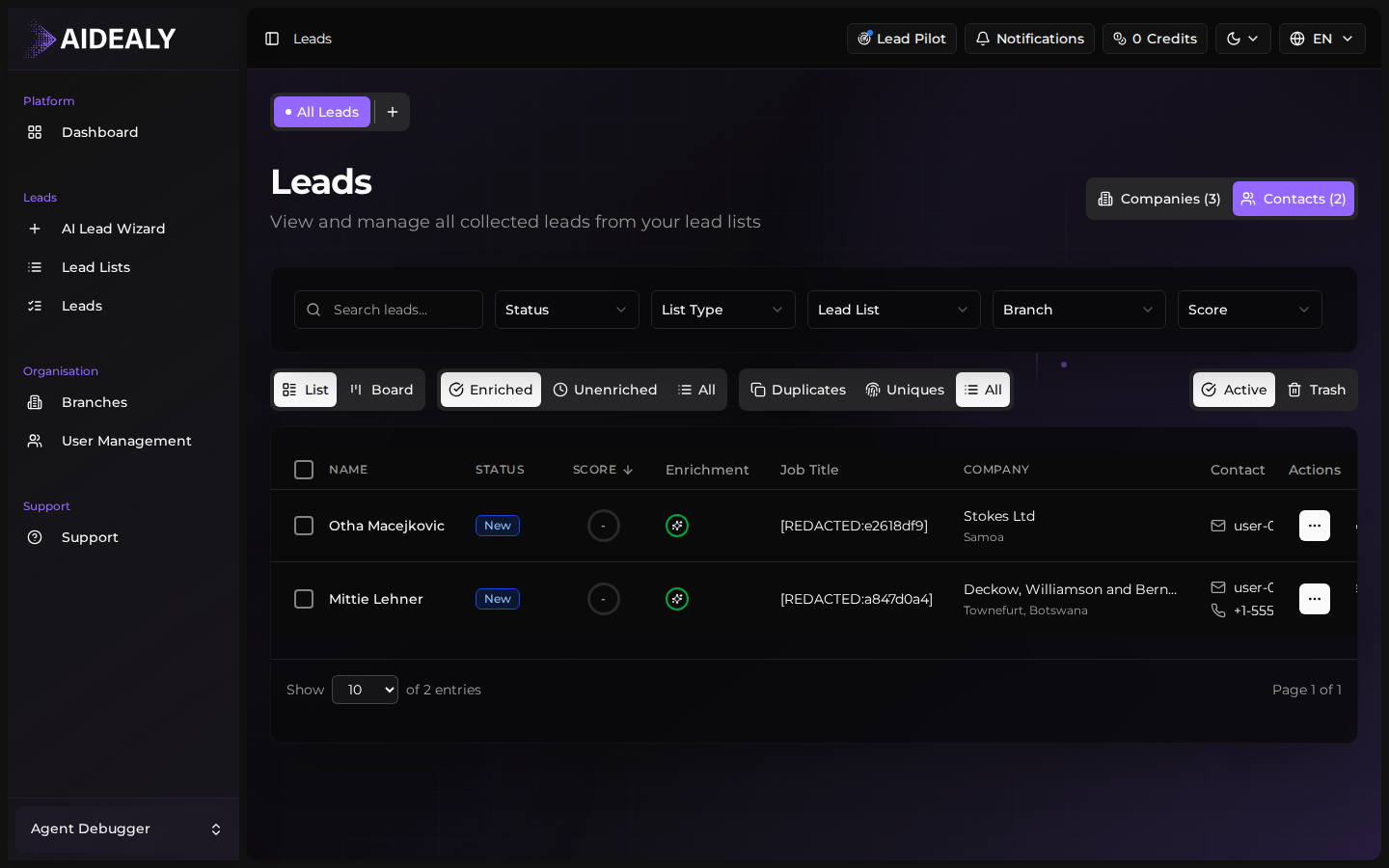
Contacts view
The Contacts view flips the lens: one row per person, with their role, the company they belong to, their verified email status, and the ICP score they inherit from their company.
Use this view when you're building an outreach send — you want a flat list of humans to email, not a list of logos.
Switching to the Kanban board
- 1
Click the Kanban tab
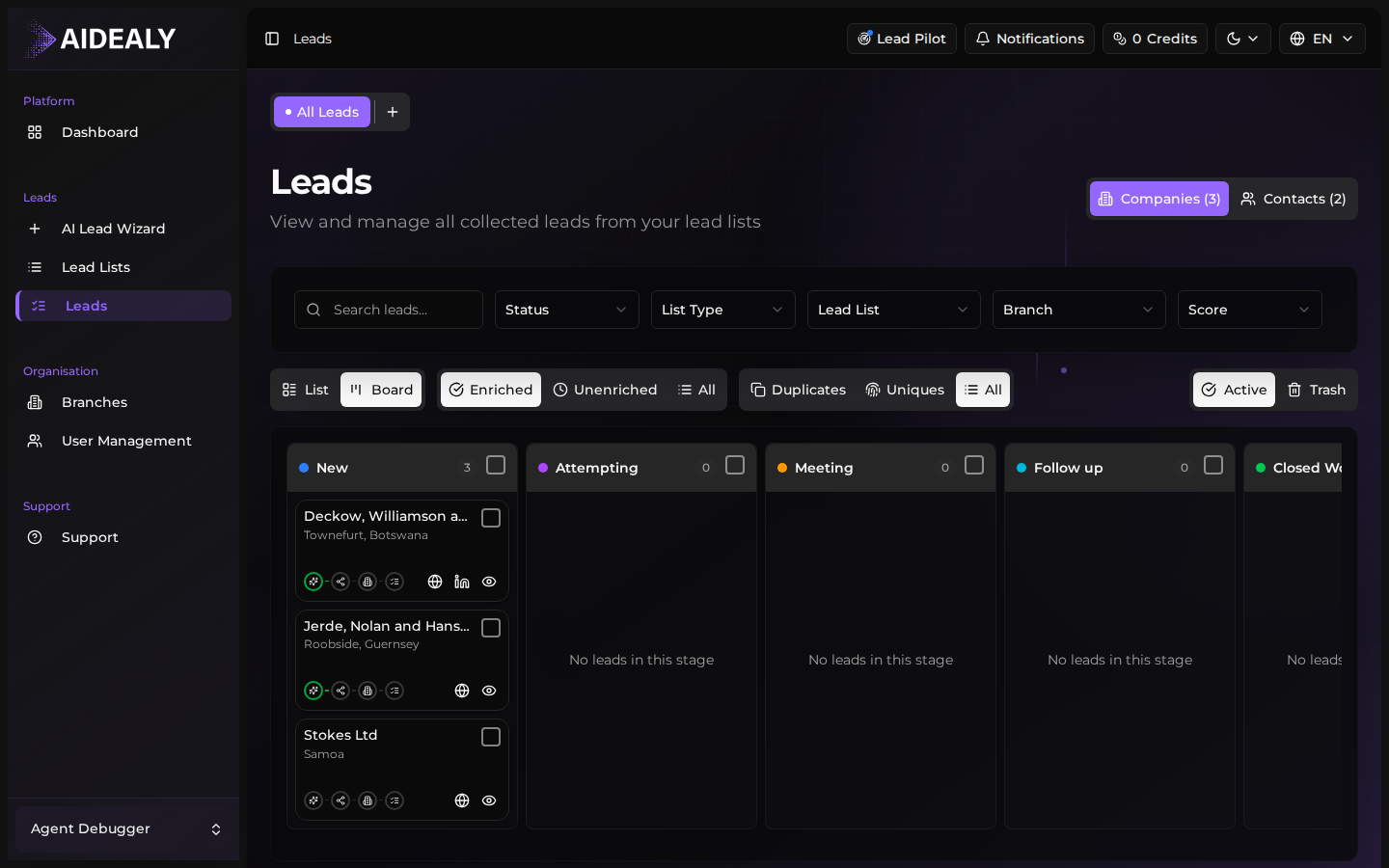
In the view tabs at the top of the Leads Hub, click Kanban. The same set of leads — respecting any filters and the active scope — is re-rendered as a board grouped by status.
- 2
Drag a card to update status
Each column represents a lead status (New, Qualified, In Progress, Won, Lost, and so on). Drag a card from one column to another to update that lead's status — Aidealy saves the change immediately and the lead moves in every other view too.
- 3
Open a card to see the full lead
Click a card to open the lead drawer on the right with the full company profile, ICP score breakdown, and contacts — without leaving the board. Close the drawer to keep moving cards.
Lead row actions and quick drawer
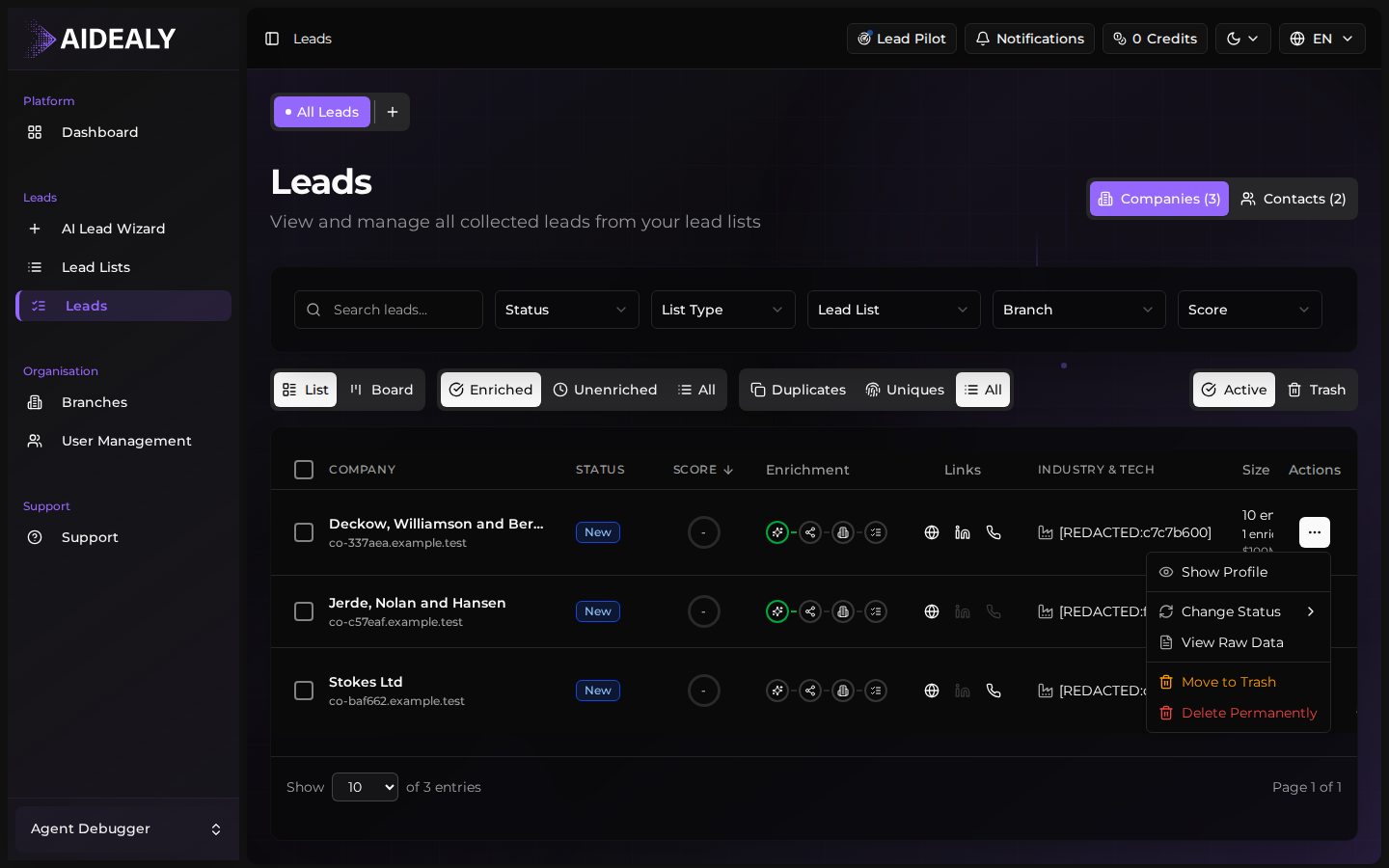
Every row in the table has two ways to act on it. The row itself opens the quick drawer with the full lead detail; the three-dot menu on the right opens a per-row actions menu for the most common operations — enrich, change status, add to a Lead List, or archive.
The drawer is non-blocking: you can keep scrolling the table behind it. Use the drawer for fast inspection; use the dedicated lead detail page when you need to spend real time on a record.
Run a quick action on a single lead
- 1
Find the lead in the table
Use search or the filter bar to narrow the table until the lead you want is visible. Sorting by score or last activity often helps you surface the right row quickly.
- 2
Open the row action menu
Hover over the row and click the three-dot menu on the right. A short list of actions appears — enrich, change status, add to a Lead List, archive, and a link to the full lead detail page.
- 3
Pick an action
Click an action to run it. Most actions complete instantly; longer ones (like enrichment) show a small toast when they finish so you can stay focused on the table.
What's next
Now that you know the lay of the land, the next articles in this category go deeper on the parts you'll use most: switching views, filtering and sorting, the full lead detail page, and bulk actions for working on many leads at once.
Bookmark the Leads Hub
Most teams open the Leads Hub first thing in the morning. Bookmark /leads in your browser so you're one click away from your daily workflow.