Bulk actions on leads
Select many leads at once to update status, archive, enrich, create a sub-list, or delete.
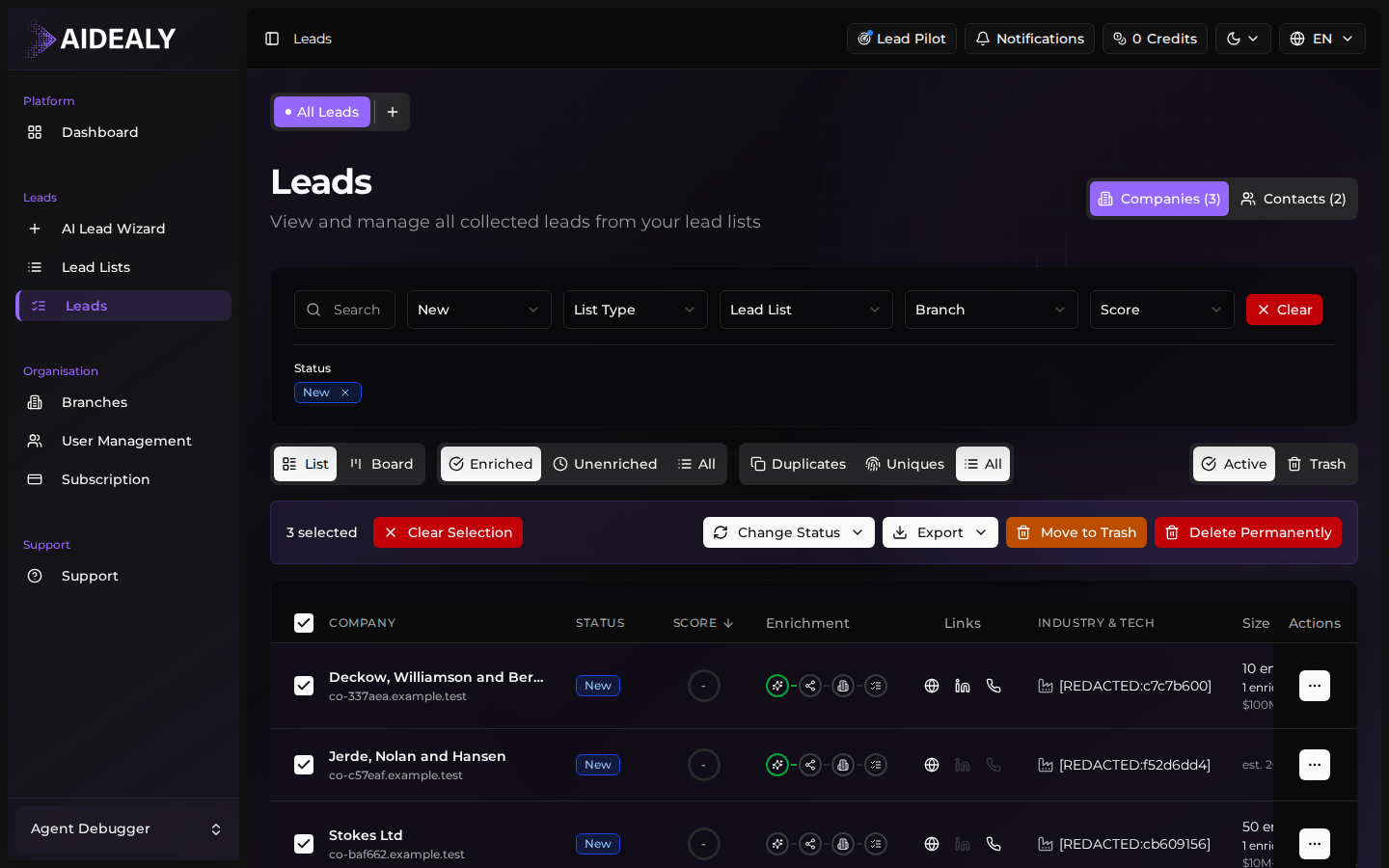
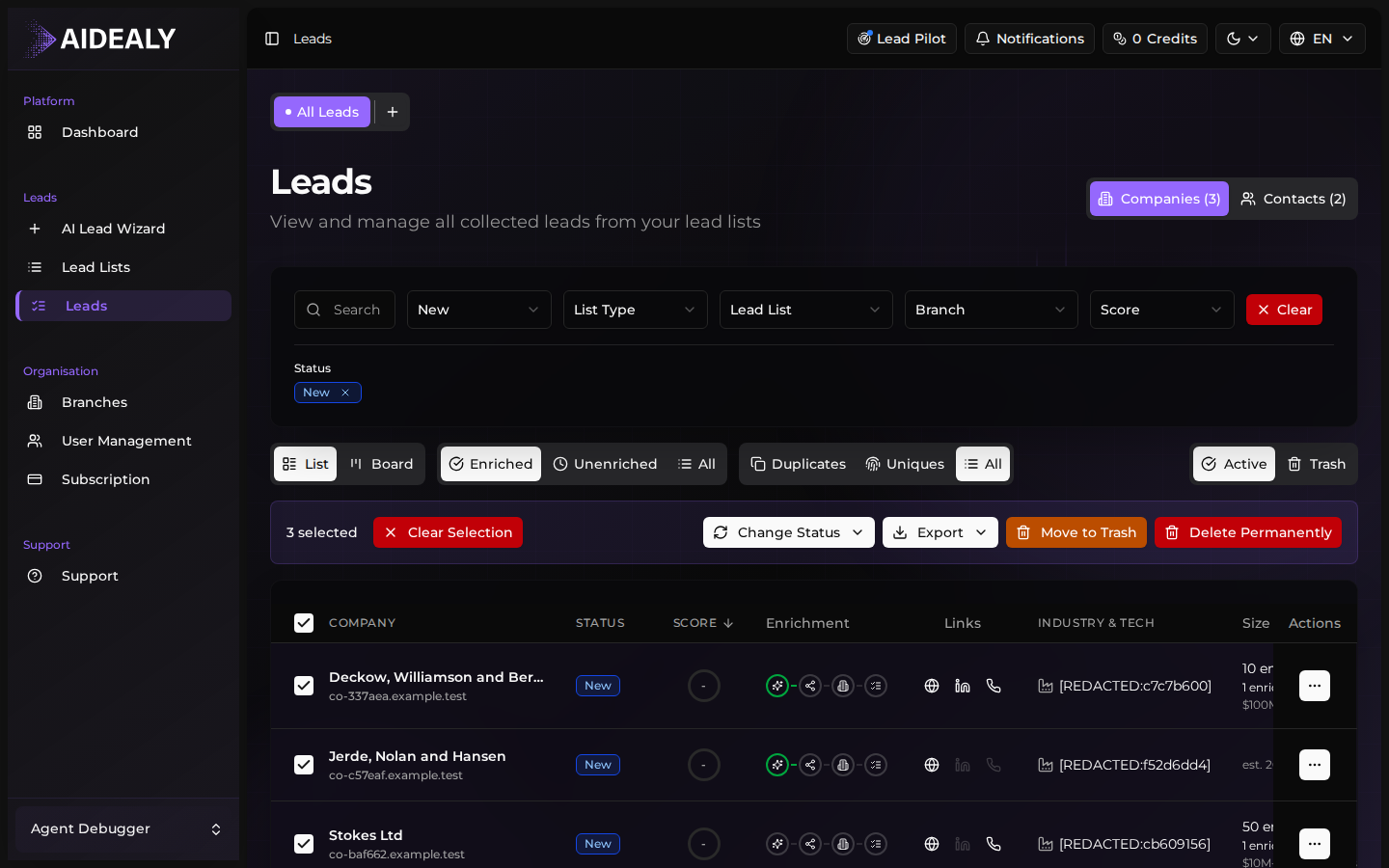
Select multiple leads to act on them together. The bulk toolbar appears at the bottom of the page once you've ticked at least one row, and it stays available across filter and view changes as long as you have a selection.
Select multiple leads
Make a multi-row selection
- 1
Tick the header checkbox
Click the checkbox in the table header to select every visible row on the current page. The bulk toolbar slides up at the bottom of the screen.
- 2
Or pick rows individually
Tick the checkbox at the start of each row to add it to the selection. Shift-click ranges work too — tick the first row, shift-click the last, and everything between is selected.
- 3
Extend across pages
The toolbar offers Select all matching when there are more results than fit on one page — it expands the selection to every lead that matches your current filters, not just the visible ones.
Available bulk actions
| Action | Effect |
|---|---|
| Change status | Move every selected lead to a chosen status (New, Qualified, In Progress, Won, Lost). |
| Enrich | Run enrichment across the whole selection in one job. You see a credit estimate first. |
| Create list | Open a new Lead List populated with the current selection. |
| Archive | Hide the selected leads from the active view without deleting them — restorable from the Archived view. |
| Export | Download the selection as CSV or Excel. |
| Delete | Permanently remove the selected leads. This action is logged and cannot be undone. |
Delete is permanent
Archive when you want leads out of the way; only delete when you're sure you'll never need them again. Deleted leads also disappear from any Lead List they were part of, and the action can't be reversed.
Create a new list from selection
Spin off a Lead List from a selection
- 1
Select the leads
Filter and select the leads you want to group — for example, all 70+ scored leads from a recent campaign.
- 2
Click Create list
In the bulk toolbar click Create list. The Create list dialog opens, pre-populated with the count of selected leads.
- 3
Name it and save
Give the new list a name and optionally bind it to an ICP. Save, and Aidealy creates a manual-cadence Lead List containing exactly those leads — a great way to slice a campaign-specific subset out of a broader list.