Filter and sort leads
Narrow the list by ICP, score, status, enrichment state, list, or any combination.
The filter bar lives at the top of every leads view. Filters stack: every filter you add narrows the result further. Sort by score, name, last activity, and more to surface the right leads at the top.
Apply a filter
Add a filter to the leads table
- 1
Click Filter
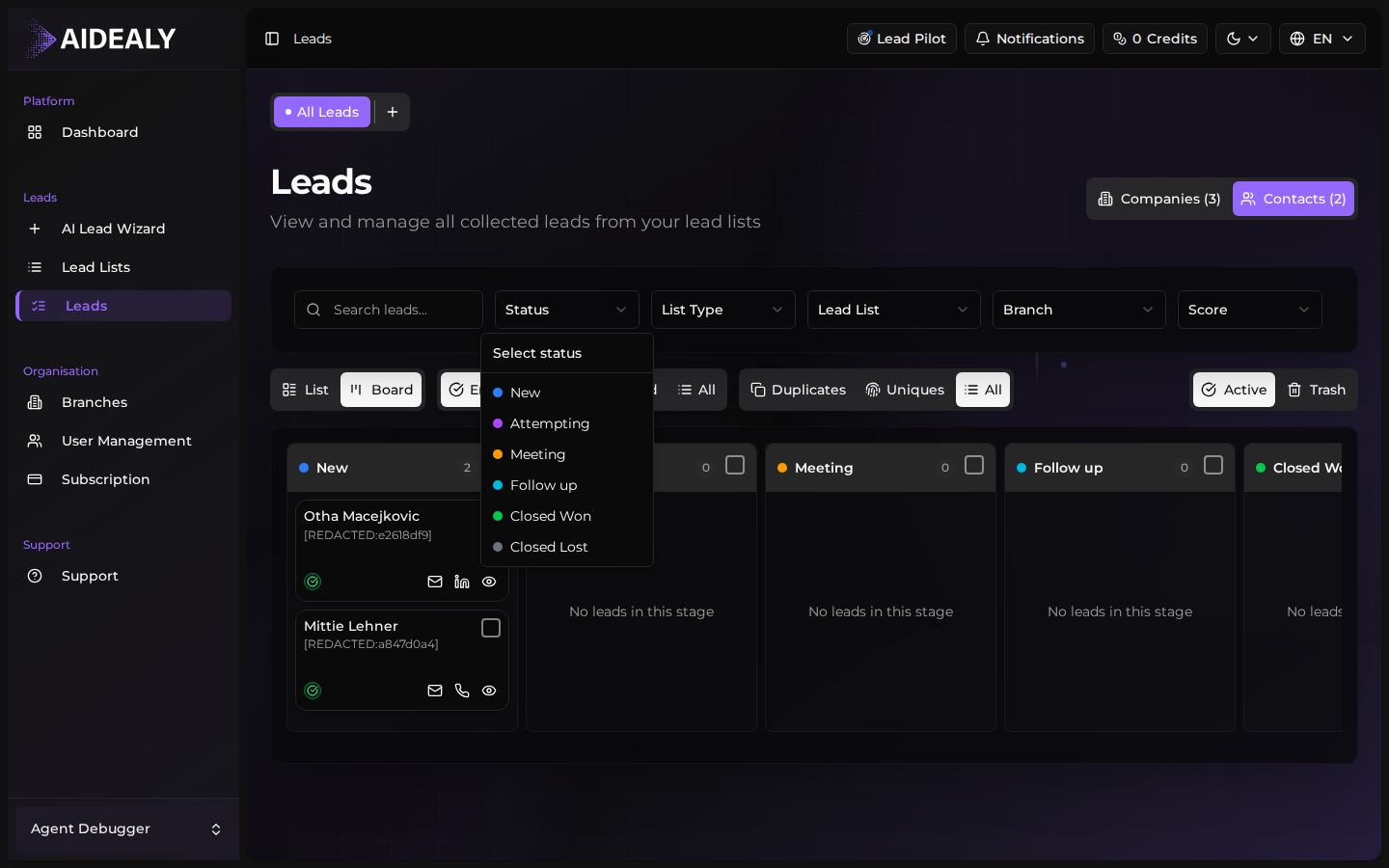
Click the Filter button in the toolbar to open the filter dropdown. You'll see options for ICP, score range, status, enrichment state, Lead List, and tags.
- 2
Pick a value
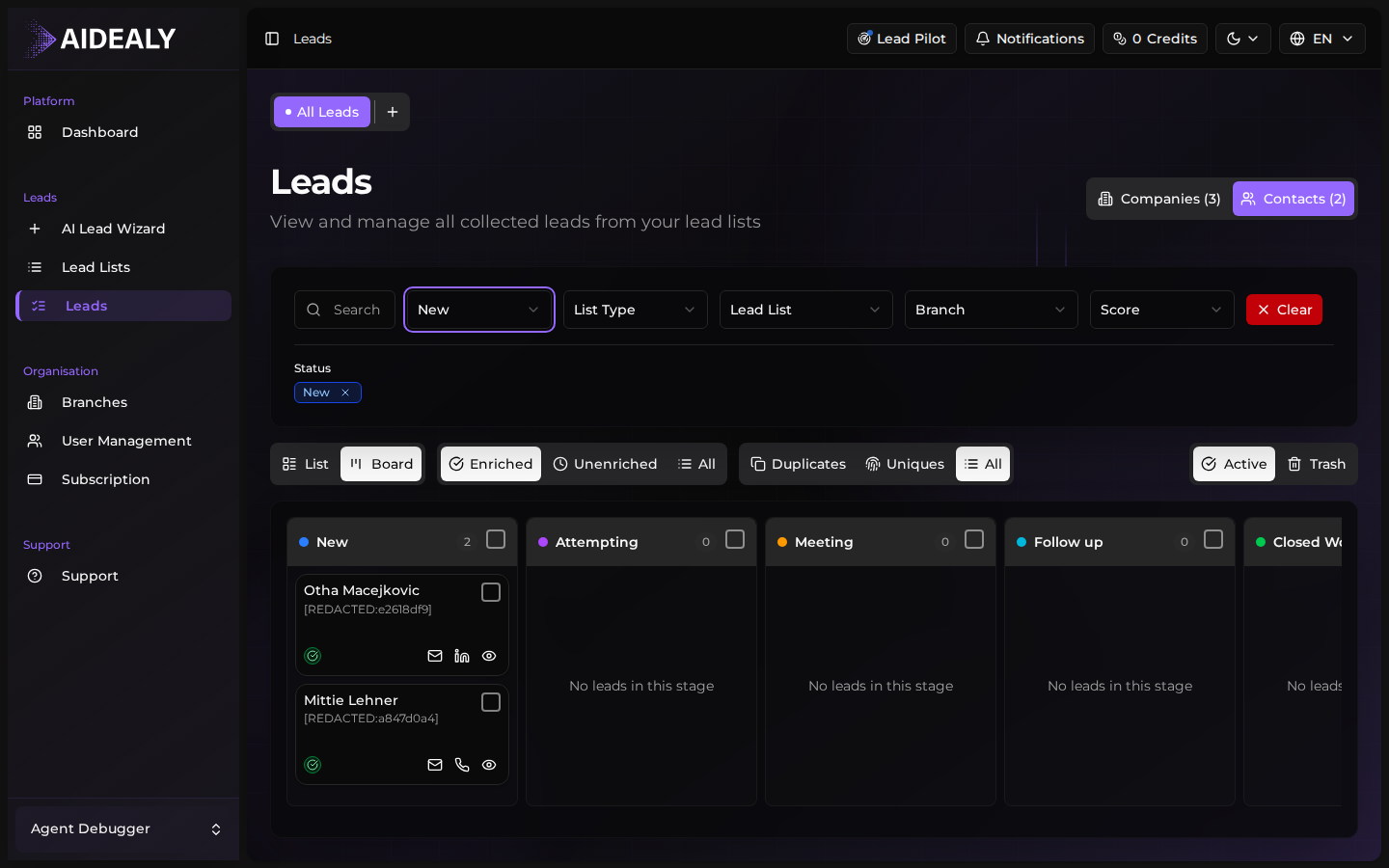
Choose the value you want to narrow on. The table updates immediately and a filter pill appears in the toolbar showing what's active.
- 3
Stack more filters
Click Filter again to add a second filter. Filters combine with AND logic — every filter must match for a lead to remain in the result.
Multiple filters at once
Filter pills sit on the toolbar so you can see what's active and remove any one without clearing the rest. The URL updates as you filter, so you can bookmark or share a specific slice of leads — for example, all leads with a score above 70 in your top Lead List.
Sort the table
Sort leads by score or name
- 1
Click a column header
Click the Score column header to sort by score. Click again to reverse direction. An arrow indicator shows current sort direction.

- 2
Pick another column
Sortable columns include Name, Score, Last activity, and Created. Click any of them to change the sort. Only one sort is active at a time.