Export leads
Download your leads — selected, filtered, or whole list — as CSV or Excel.
Aidealy can export from any leads view. Exports respect the filters and selection you currently have applied, so you only download the slice you actually want — and they include every enriched field, not just what's visible in the table.
Export selected leads
Export from the Leads Hub
- 1
Filter or select leads
Apply the filters you want included, or tick the rows you want to export. The export will match whichever is more specific.
- 2
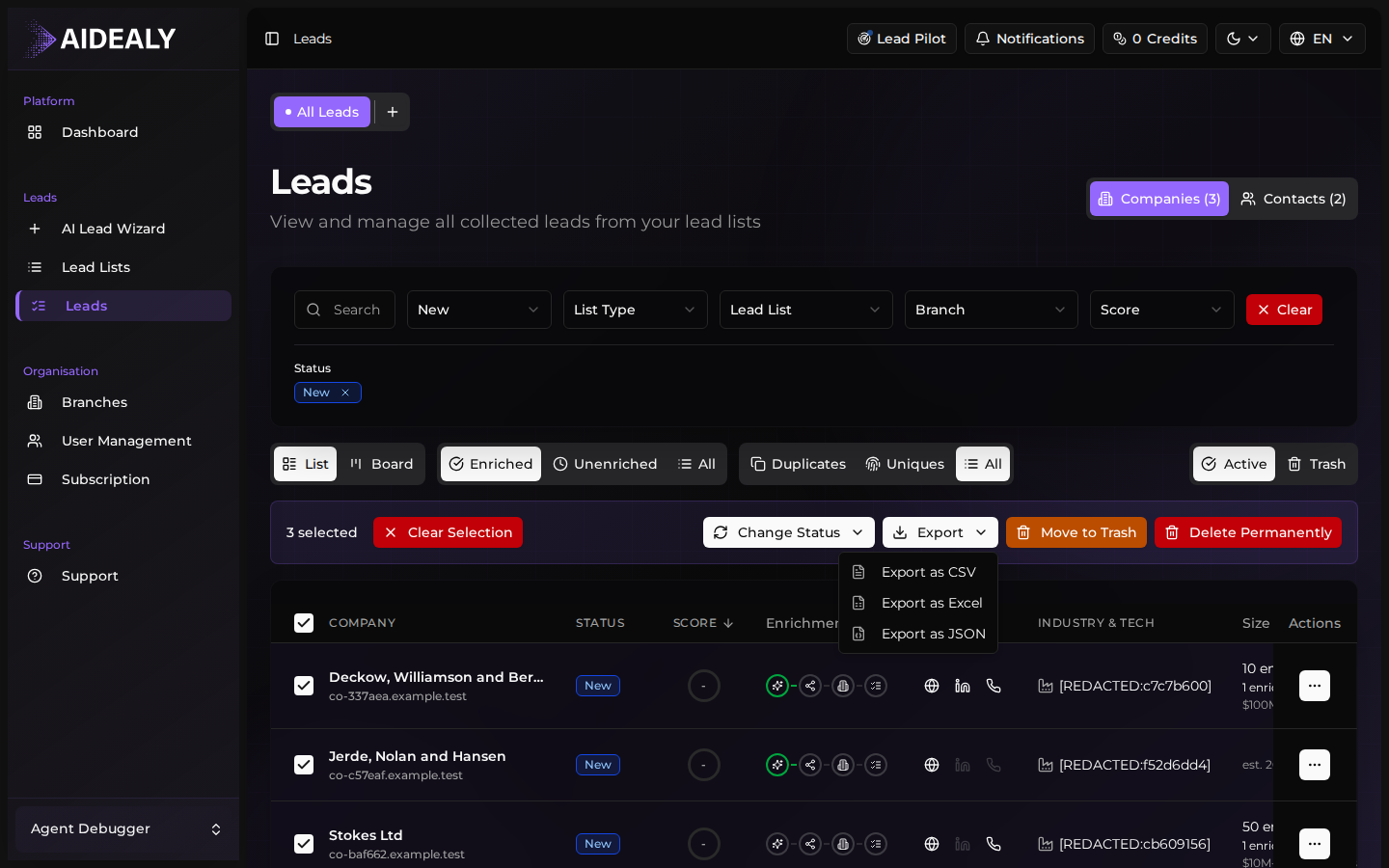
Click Export
Open the bulk toolbar (if you have a selection) or the page action menu, and click Export. The export dialog opens with format and column options.
- 3
Pick a format and download
Choose CSV for plain text or Excel for a formatted spreadsheet. Click Download — the file generates in a few seconds and your browser saves it.
Export a whole Lead List
Export every lead in a Lead List
- 1
Open the Lead List
From the Lead Lists page click into the list you want to export.
- 2
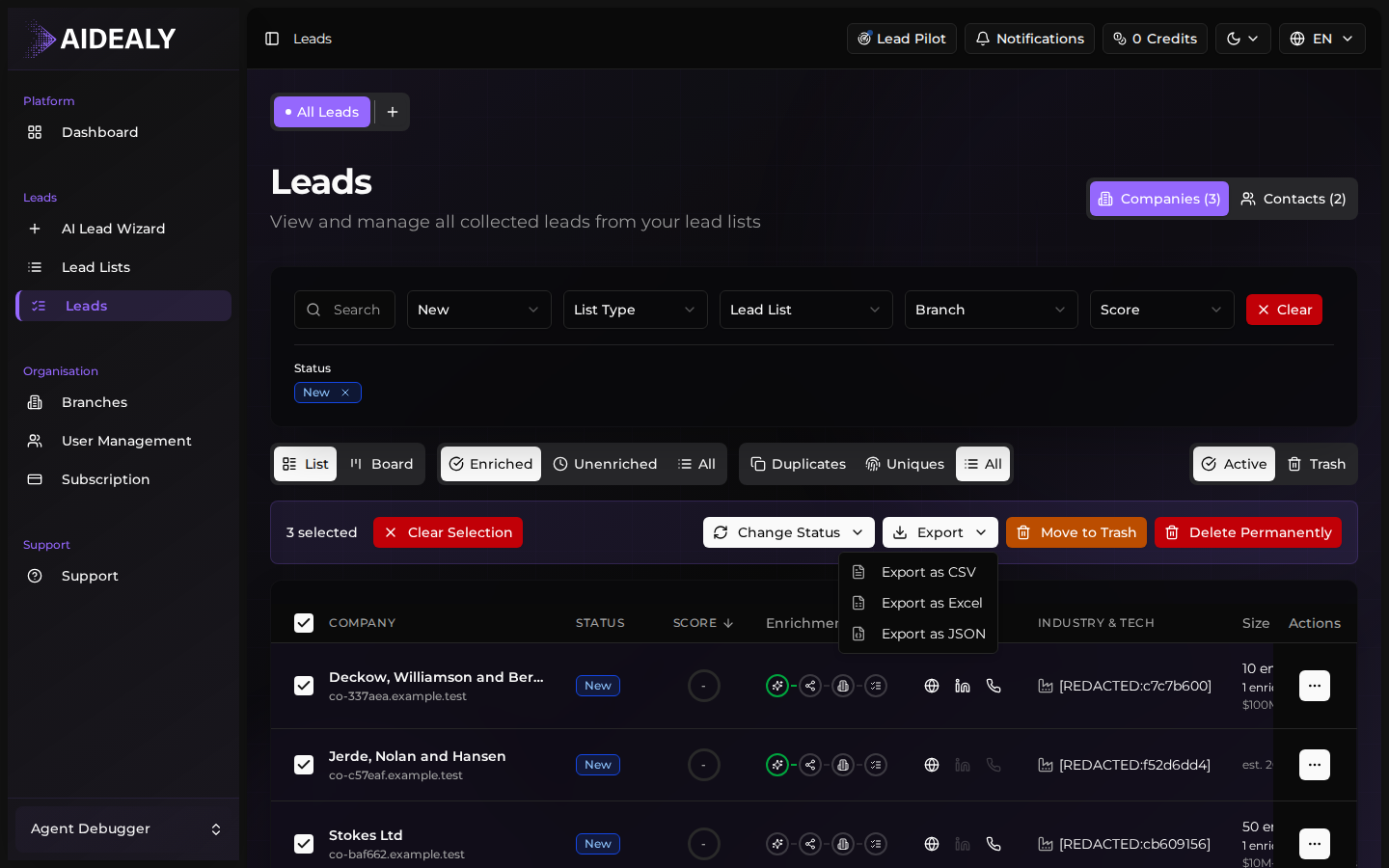
Use the Export action
Open the list's action menu and pick Export. The export covers every lead currently in the list, regardless of any filter you have applied in the Leads Hub.
- 3
Download
Pick CSV or Excel and download. For very large lists, Aidealy emails you a link once the export is ready.