Roles and permissions
Owner, Admin, Member — what each role can do.
Aidealy uses three top-level roles. Roles cascade from organisation down to branch level, so a user can be an Admin of one branch and a Member elsewhere.
Role comparison
The table below shows what each role can do at the organisation level. Branch-level roles work the same way but only affect the branch they are assigned to.
| Capability | Owner | Admin | Member |
|---|---|---|---|
| Manage billing and plans | Yes | No | No |
| Invite and remove users | Yes | Yes | No |
| Change user roles | Yes | Yes | No |
| Create or edit branches | Yes | Yes | No |
| Create and run Lead Lists | Yes | Yes | Yes |
| Edit ICP Profiles | Yes | Yes | Yes |
| View leads and reports | Yes | Yes | Yes |
| Delete the organisation | Yes | No | No |
Owners are unique
There is always exactly one Owner per organisation. Admins can do almost everything an Owner can, but billing changes and deleting the organisation are reserved for the Owner. Transfer ownership from the organisation settings if you need to hand the keys over.
Change a user's role
- 1
Open the users page
From the sidebar, open Users to see every member of your organisation in a single table.
- 2
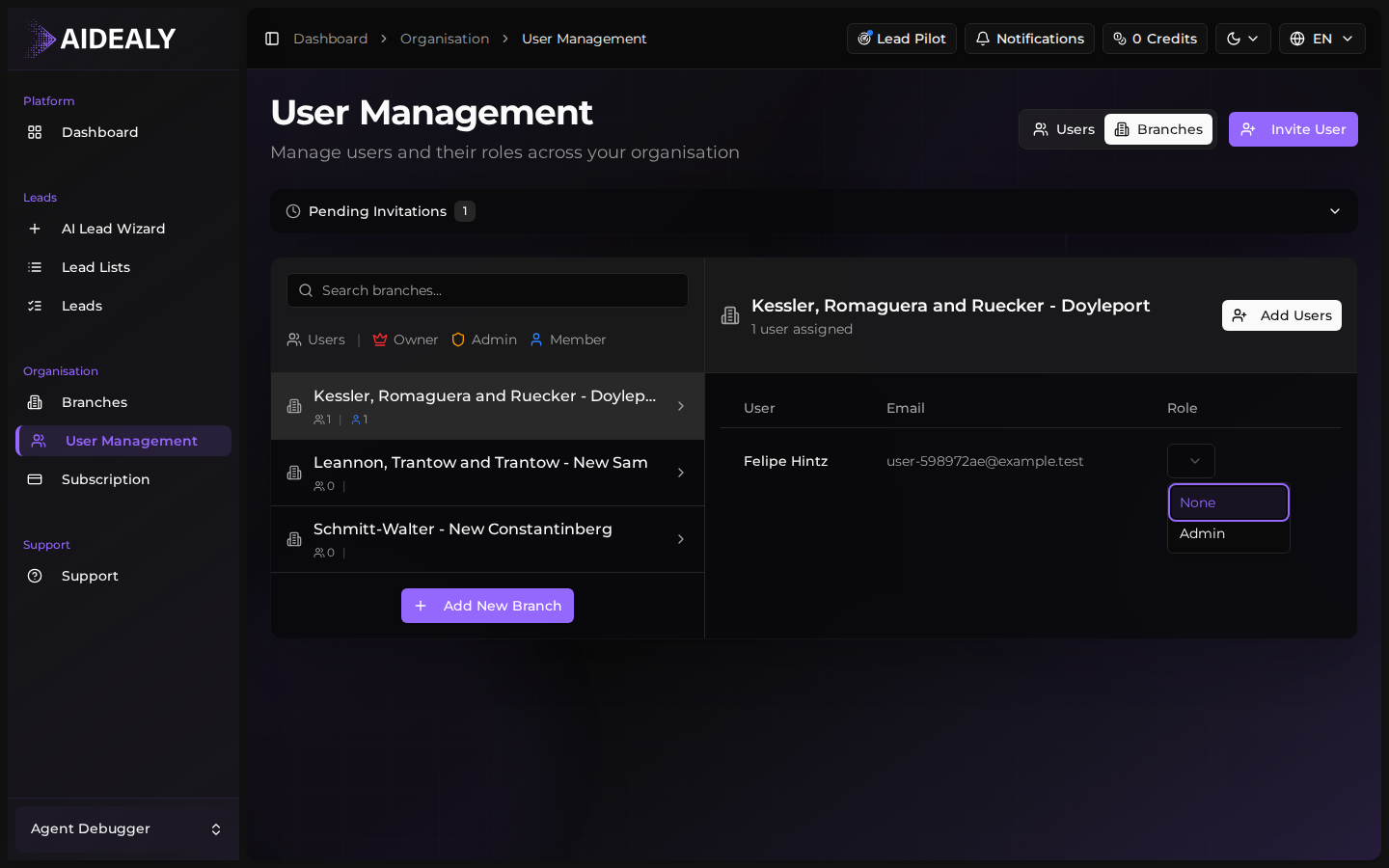
Use the role selector on the row
Find the user whose role you want to change. The Role column shows their current role as a dropdown. Click it and pick the new role.
- 3
Confirm the change
Aidealy saves the new role immediately. The user sees the new permissions on their next refresh — no logout needed.