Add a new branch
Admins can add new branches to mirror real-world structure.
Branches are created by Admins or Owners. You will fill in a short form with name, address, and optionally an industry profile that helps Aidealy tailor Lead Lists to the branch.
Open the create form
- 1
Go to your organisation page
Open the organisation page from the sidebar. You will see the branch list with a button at the top right to add a new branch.
- 2
Click "Add branch"
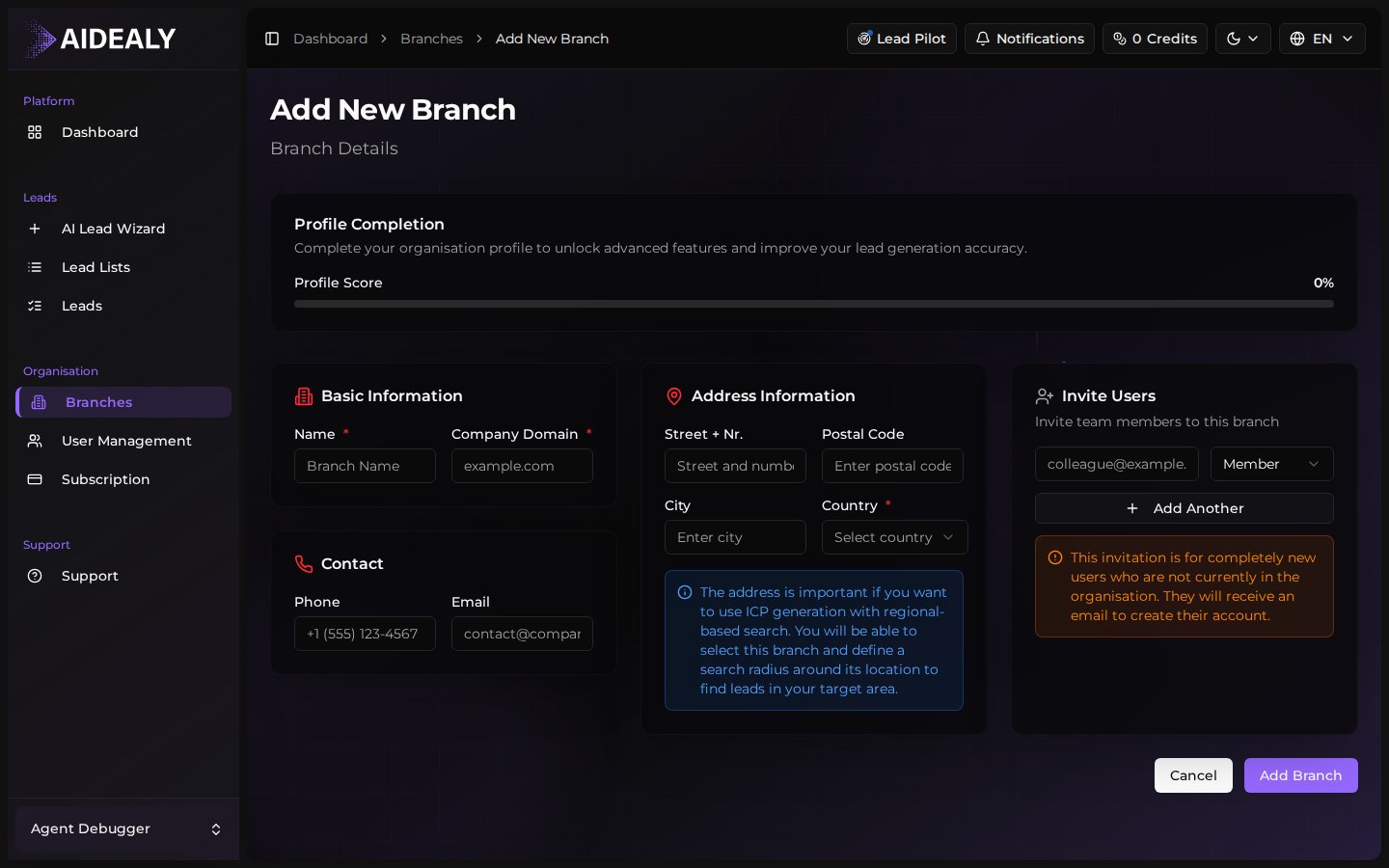
Click the Add branch button. Aidealy opens a form with fields for the branch name, address, contact details and an optional industry summary.
- 3
Fill in the form and save
Enter the branch name and address at minimum. The other fields can be added later from the branch profile. Click Save to create the branch — it appears immediately in your branch list.
After creation
A new branch starts empty. You can now invite members to it, assign Lead Lists, or generate an AI profile that captures the branch's industry, products and signals. Most teams set the AI profile right away because it powers smarter Lead List defaults across the branch.
Set the AI profile early
Generating the AI profile takes a minute or two and makes every later Lead List in the branch sharper. Trigger it from the branch profile page immediately after creation.