Manage team members
View, edit access, remove from branches, or remove from the organisation entirely.
The users page lists everyone in your organisation. Admins can edit access, change role, remove a user from a single branch, or remove a user from the organisation entirely.
User list
Open Users from the sidebar to see every member in a single table. Each row shows the name, email, role, branches they belong to, and the last time they signed in. Use the search box at the top to find someone quickly, or sort by role or last-active to spot gaps in coverage.
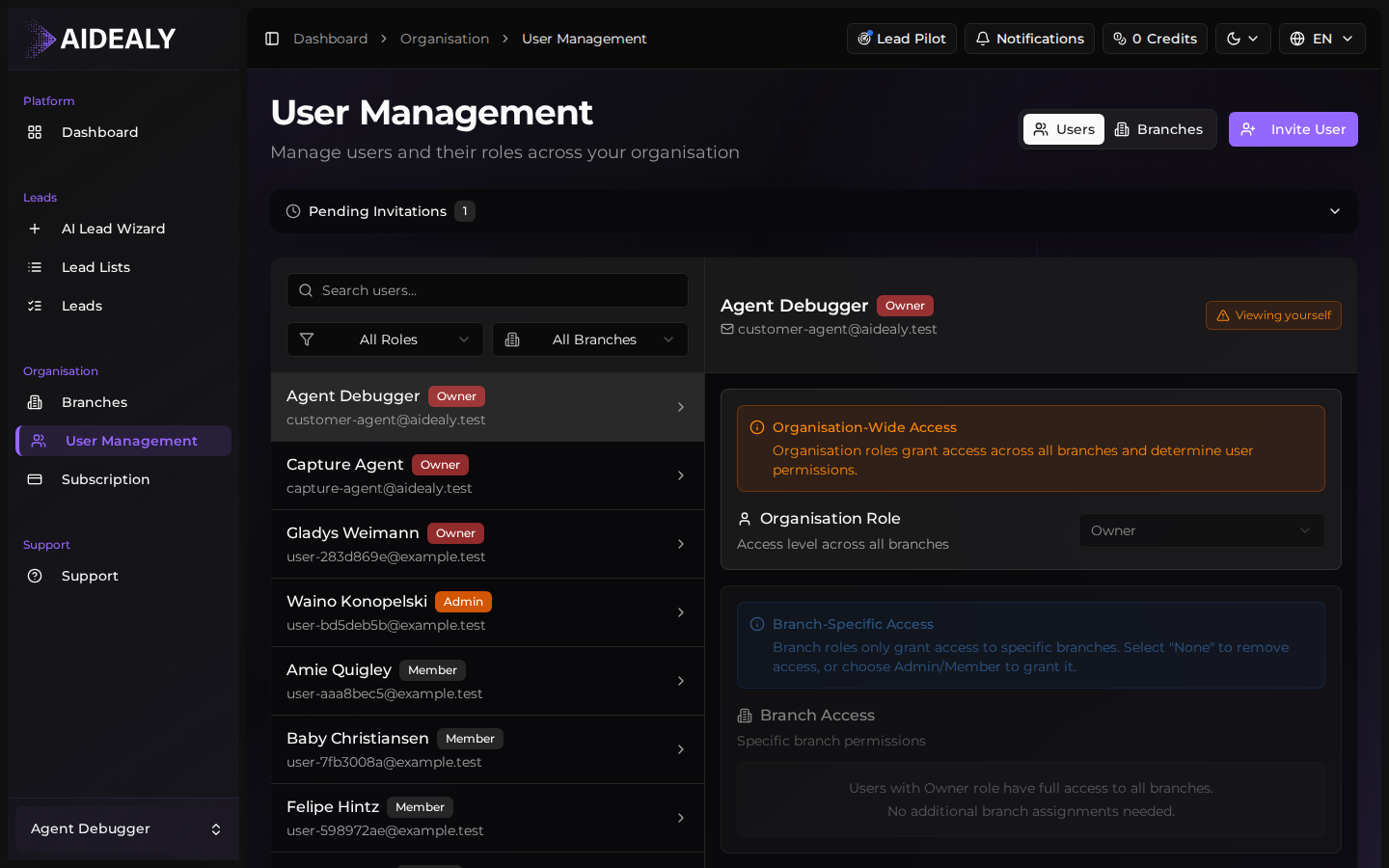
User detail and access editing
- 1
Open the user
Click a name in the users table to open the user detail page. You see their profile, role, branch memberships and a per-branch role list.
- 2
Edit branch access
Use the access editor to add or remove the user from individual branches. You can also change their branch-level role here — a user can be an Admin in one branch and a Member in another.
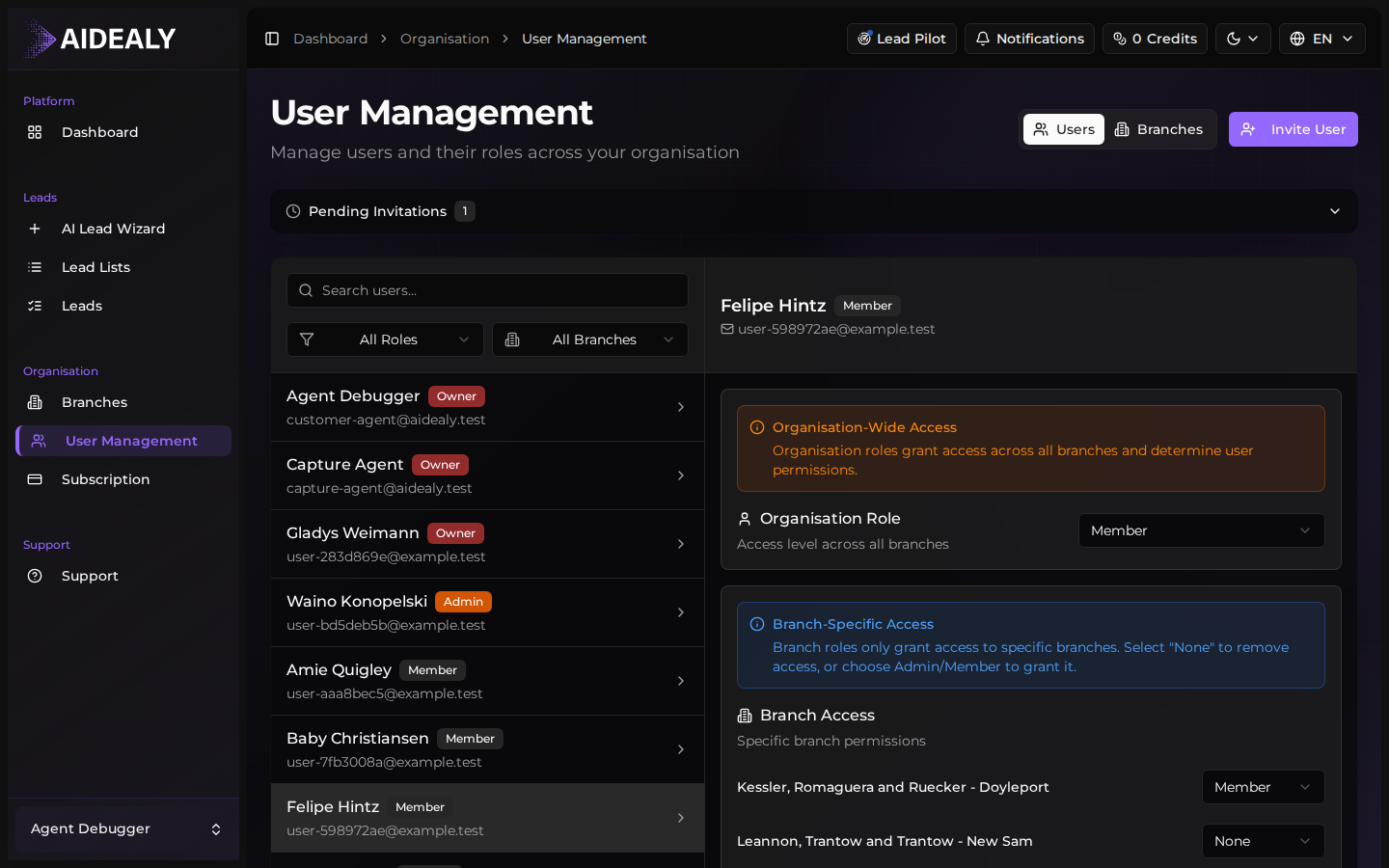
- 3
Save the changes
Click Save. Aidealy applies the new access immediately. The user sees the updated branch list on their next refresh.
Removing a user is permanent for their data
When you remove a user from the organisation, their personal Lead Lists and saved searches go with them. Leads they touched stay in the organisation but lose the assignment. Reassign their pipeline before you remove them, otherwise work in progress can drift.
Remove a user from the organisation
- 1
Open the user detail page
Click the user in the users table to open their detail page.
- 2
Click "Remove from organisation"
The remove action sits at the bottom of the page in a danger-coloured section. Aidealy asks you to confirm because the action is irreversible — the user will need a new invitation to come back.
- 3
Confirm
Type the user email to confirm, then click Remove. The user is signed out of the organisation immediately and their session ends. They keep their own user account but lose access to your workspace.