Edit a branch profile
Update branch details, set it as HQ, mark as favourite, or regenerate its AI profile.
Each branch has an editable profile: name, address, industry summary and signals. Admins can also designate the branch as Headquarters or trigger a fresh AI-generated profile.
Edit branch details
- 1
Open the branch
From the organisation page, click the branch you want to edit. The branch profile opens with the current details and an Edit button.
- 2
Click Edit and update the fields
Click Edit to switch the form into edit mode. Update the name, address, contact details or industry summary. Required fields are marked with an asterisk.
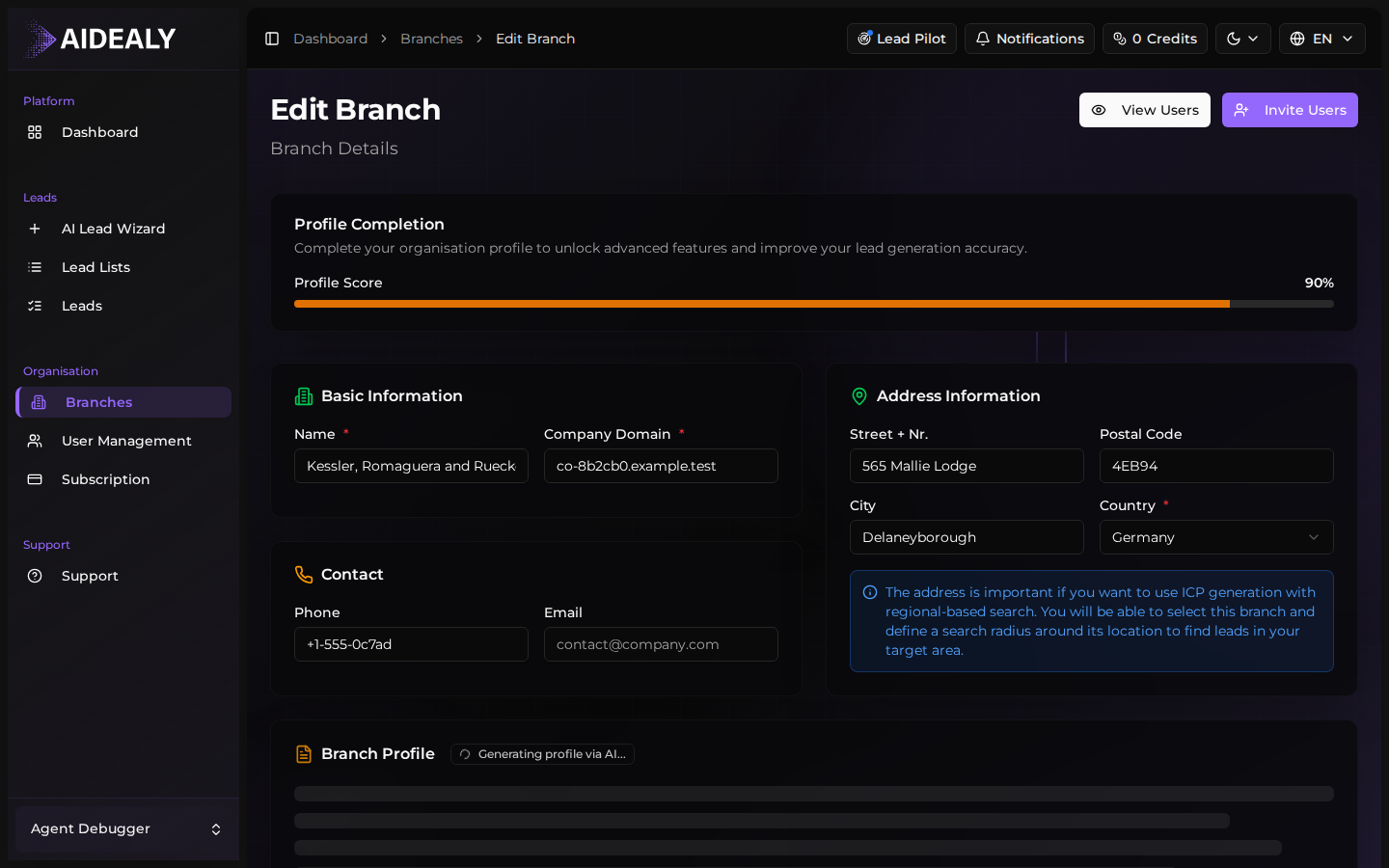
- 3
Save your changes
Click Save. Aidealy validates the form and applies the changes immediately across the app — members assigned to the branch see the new details on their next refresh.
Regenerate the AI profile
The AI profile is a structured summary of what the branch sells, who it sells to, and what signals indicate a good fit. Aidealy uses it to seed Lead List defaults and score companies.
Open the branch profile and click Regenerate AI profile. The job runs in the background and notifies you when the new profile is ready — usually inside a minute or two. The previous profile stays in place until the new one finishes, so there is no downtime.
Regenerate after a strategy shift
If you change what the branch sells or who you target, regenerate the AI profile right away. Otherwise new Lead Lists in the branch will inherit the old positioning.