Manage payment methods
Add, replace or remove the cards Aidealy uses to charge your subscription and topups.
Aidealy lets you save multiple cards and pick one as the default. Subscription renewals and topup purchases are charged to whichever card is set as default. Card details never touch Aidealy's servers — they're held by Stripe, our payments provider.
Your saved cards
Open the Subscription page, then click Payment Methods in the sidebar. You'll see every card on file, the last four digits, the expiry date, and which one is currently set as the default.
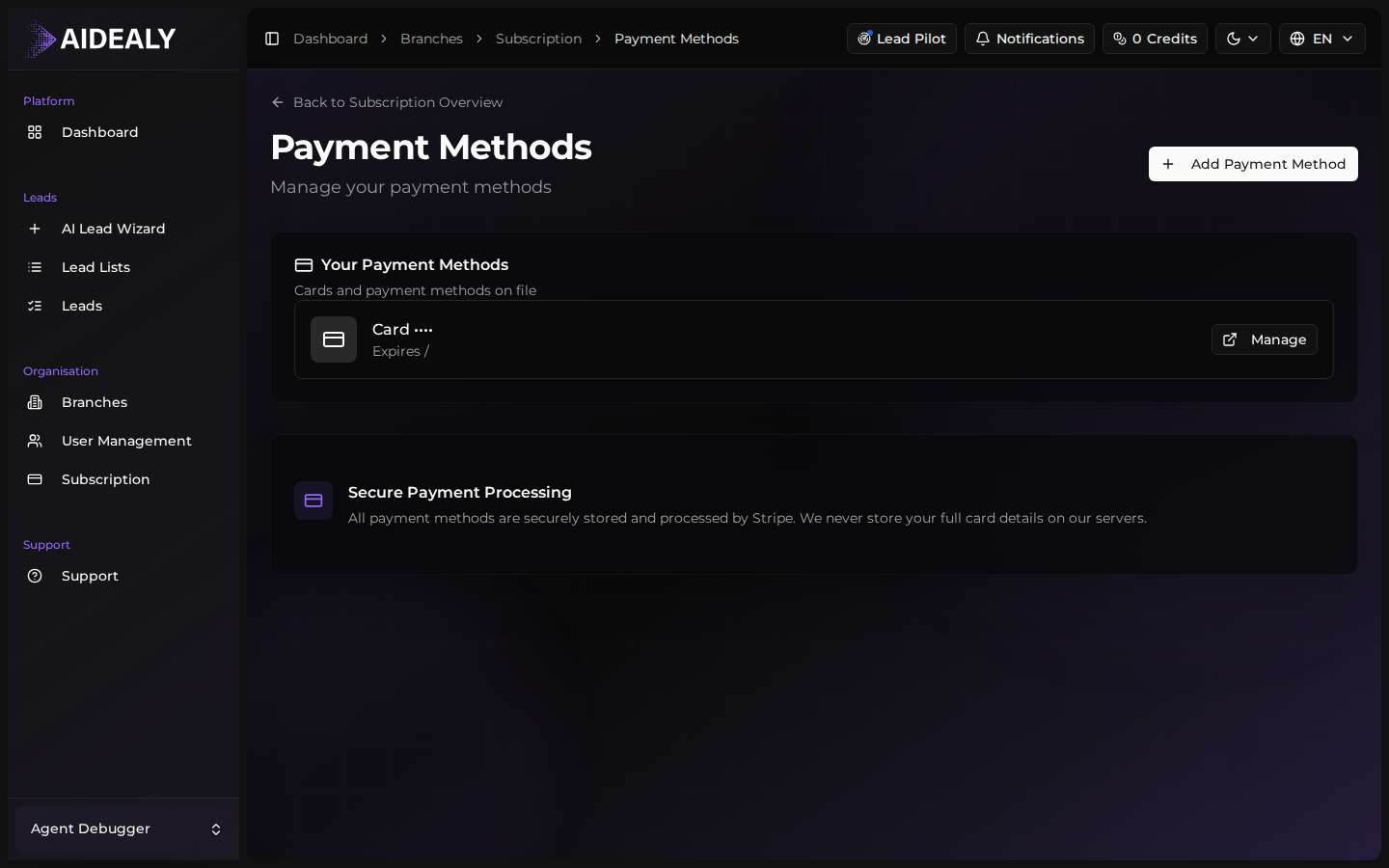
From the same page you can promote a card to default, remove a card you no longer need, or add a brand new one. The next renewal and any topup purchase will always use the card marked as default.
Add a new card
- 1
Click Add Payment Method
On the Payment Methods page, click Add Payment Method. Aidealy opens a Stripe-hosted form in the same tab so you can enter the card details securely.
- 2
Enter card details on Stripe
Fill in the card number, expiry, CVC and billing postal code. If your bank requires 3-D Secure verification (a one-time code from your banking app), you'll be prompted for it before the card is saved.
- 3
Pick the new card as default (optional)
Once the card is saved, Aidealy redirects you back to the Payment Methods list. The new card appears in the list — click Set as Default if you want future charges to use it instead of the old one.
- 4
Remove old cards (optional)
If you've replaced an expired card, you can delete the old one with the Remove button. You can't remove the card that's currently set as default — promote another card first, then remove the old one.
Card data lives at Stripe
Aidealy stores only a token and the last four digits of each card — never the full PAN, CVC or expiry. Adding, removing and updating cards always goes through Stripe's PCI-compliant infrastructure, so your card data is held only by them.