Invoices and billing history
Download invoices, see past charges, and open the Stripe billing portal.
Every charge Aidealy makes — subscription renewals, topup purchases, prorations — generates an invoice. Aidealy keeps a local cache of every invoice so you don't have to wait on Stripe to load the list. For richer controls (refund requests, tax IDs, alternate payment methods) you can hand off to the Stripe billing portal in one click.
Billing history
Open the Subscription page, then click Billing & Invoices. You'll see a chronological list of every invoice: date, description, amount, and status. Click any row to download the PDF version for your records or your finance team.
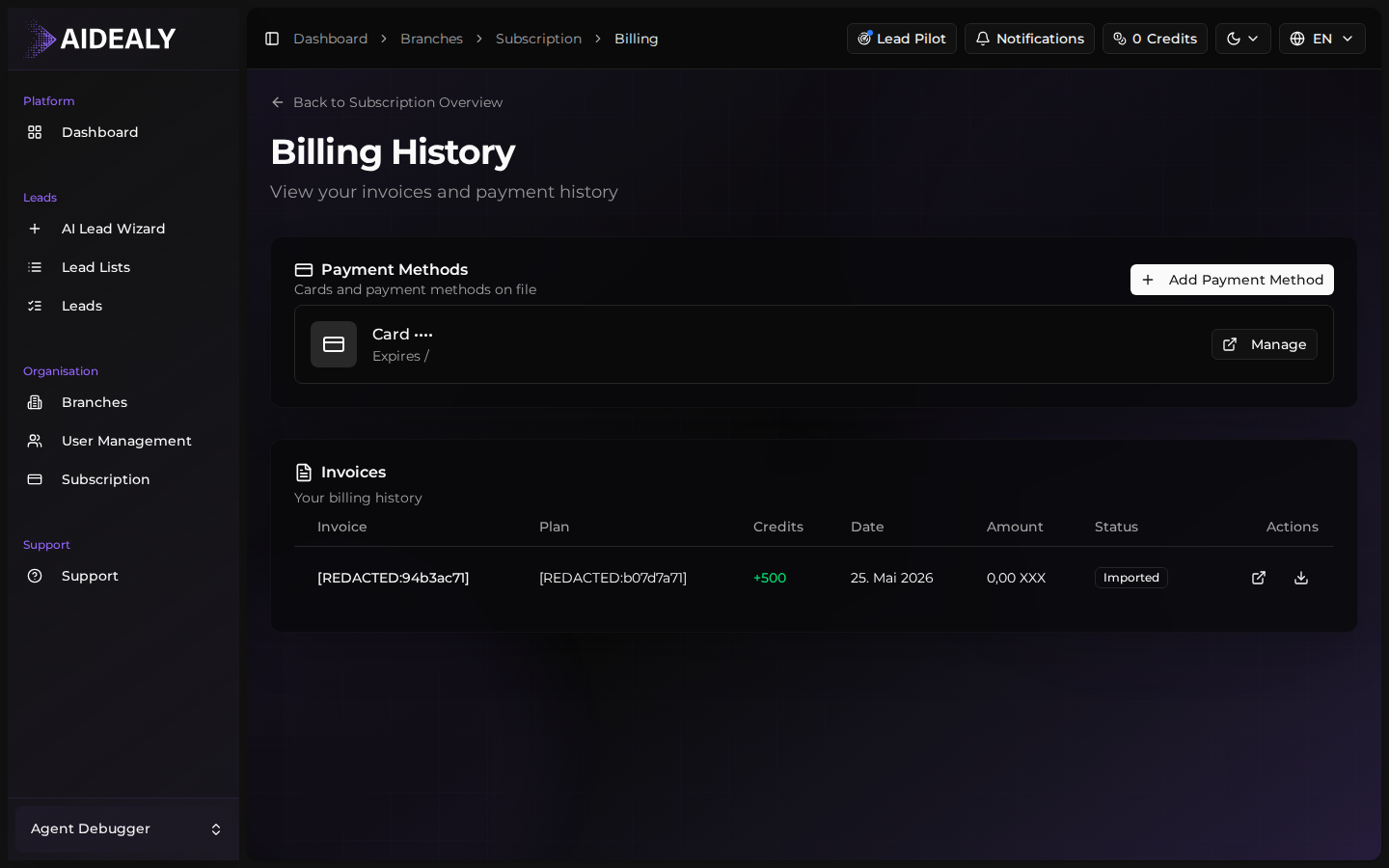
If a row is marked Open or Past Due, that invoice hasn't been paid yet — usually because the card on file failed. Open the Stripe billing portal to retry the charge or swap to a different card.
Stripe billing portal
The Stripe-hosted billing portal gives you extras Aidealy doesn't surface directly: updating the company name and address that appear on invoices, adding a VAT or tax ID, retrying failed payments, and requesting refunds.
On the Billing & Invoices page, click Open Stripe Portal. Stripe opens a tab pre-authenticated for your organisation. When you're done, close the tab — there's nothing to save manually back into Aidealy.
Invoice emails are automatic
Aidealy automatically emails a PDF of every new invoice to the billing email on your Stripe account — so even if you don't download manually, the documents reach your inbox the moment they're generated.