Import leads from CSV
Upload a CSV, map your columns to Aidealy fields, and bring existing leads into the platform.
Already have a list of leads in a spreadsheet? Import them via CSV. The wizard guides you through uploading, column mapping, previewing, and processing — and the imported leads land in your Leads Hub alongside everything Aidealy has fetched for you.
Upload a file
Start the import wizard
- 1
Open Leads → Import
From the Leads Hub click Import, or visit
/leads/importdirectly. Step 1 of the wizard appears. - 2
Pick a CSV file
Drop your CSV into the upload area or click Browse to pick one. Aidealy accepts
.csvfiles up to a few megabytes; larger files should be split first.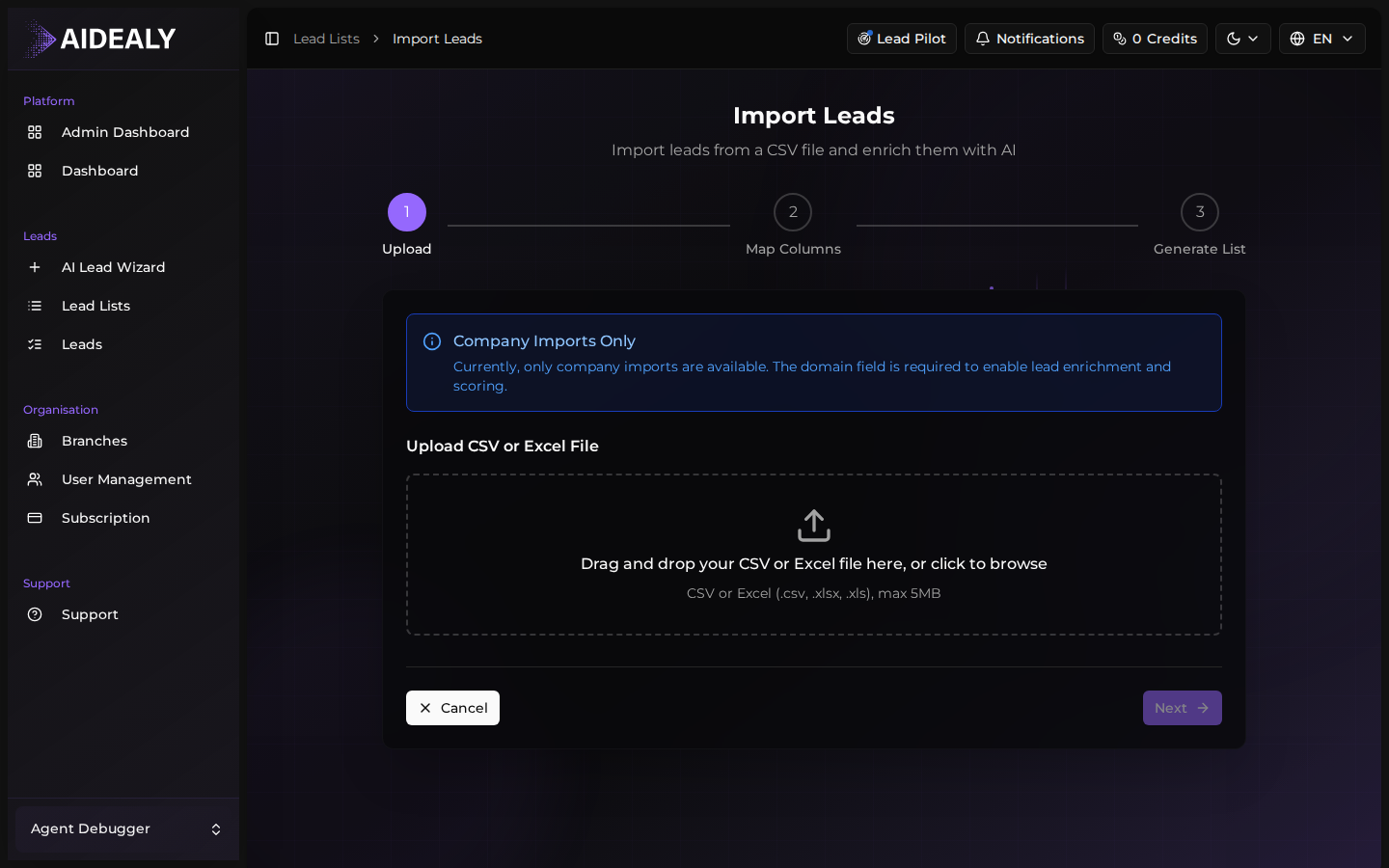
- 3
Choose lead type and target branch
Tell Aidealy whether the file contains companies or contacts, and which branch the imported leads should belong to. Click Continue to move on to mapping.
Map your columns
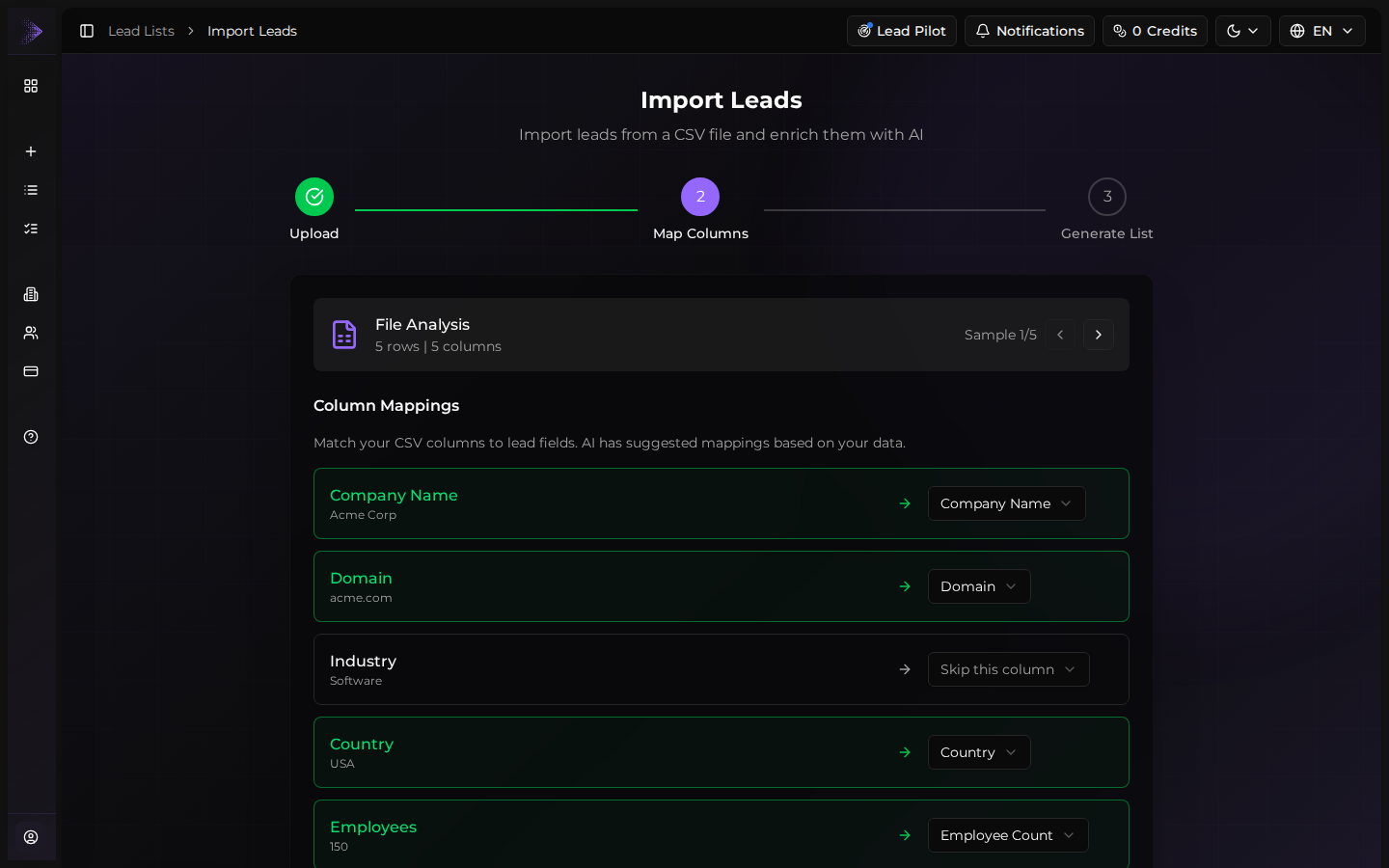
Aidealy reads the header row of your CSV and tries to auto-map each column to an Aidealy field — company name, website, email, industry, country, and so on. Step 2 shows every column side-by-side with the field it's mapped to, and lets you correct anything wrong or skip columns you don't need.
Required fields
At minimum you need a company name (for company imports) or an email address (for contact imports). Everything else is optional but improves matching during enrichment.
Preview and process
Review and run the import
- 1
Review the preview
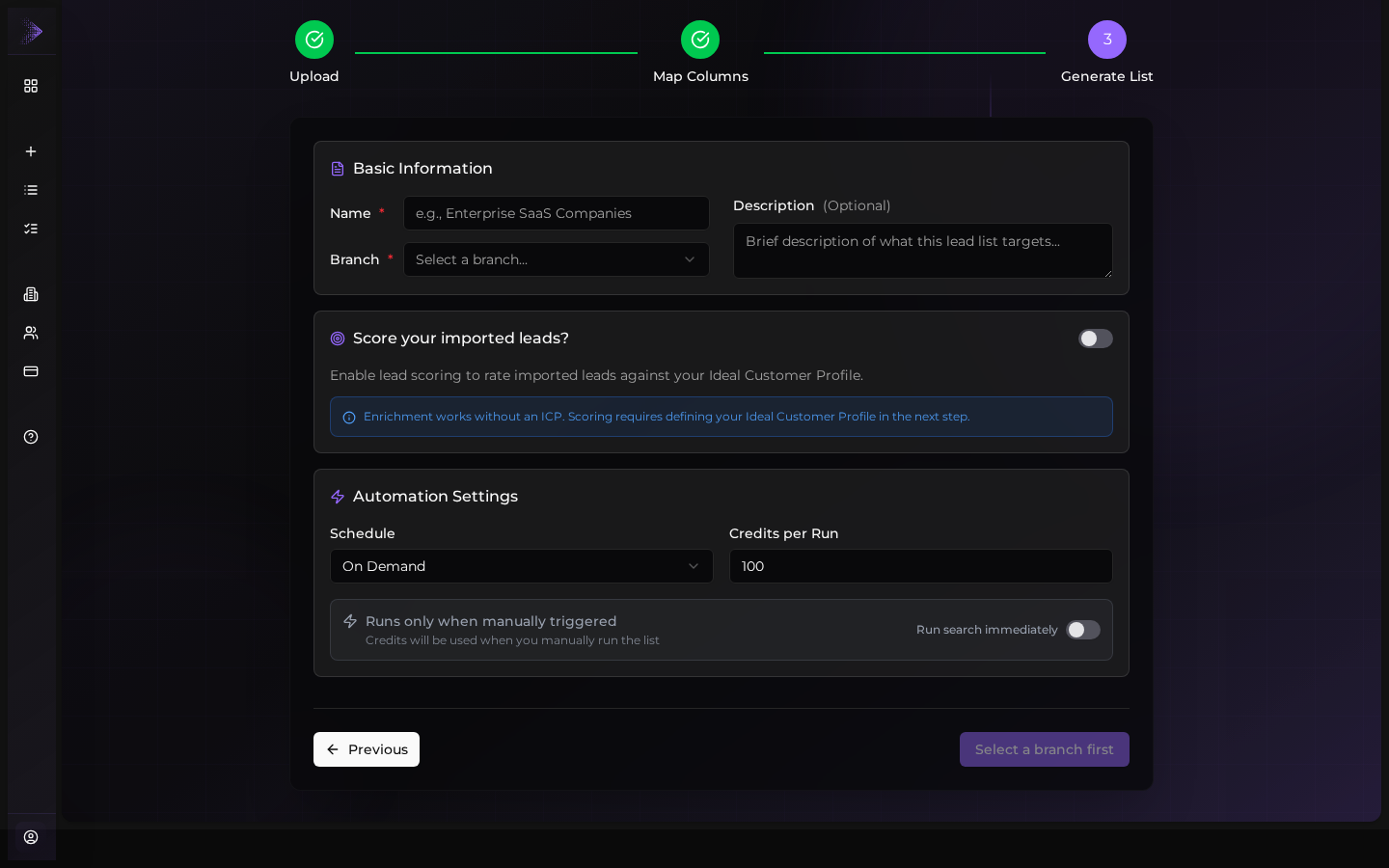
Step 3 shows the first few rows of your CSV with the mapping applied. Verify the values look right; any rows missing required fields are flagged with a warning.
- 2
Process the file
Click Process. Aidealy creates an import job, ingests every valid row, and shows progress. Once done, the imported leads appear in the Leads Hub tagged with the import source.
Imports are deduplicated
If a row matches an existing lead in your branch (by website or email), Aidealy updates the existing record instead of creating a duplicate. Rows skipped this way are listed at the end of the import.