Your first login
Sign in via WorkOS, accept any pending invitations, and land on your dashboard.
Aidealy uses WorkOS for sign-in. The first time you visit, you'll be redirected to a secure login page. After authenticating you land on the dashboard or, if you've been invited, on the acceptance page.
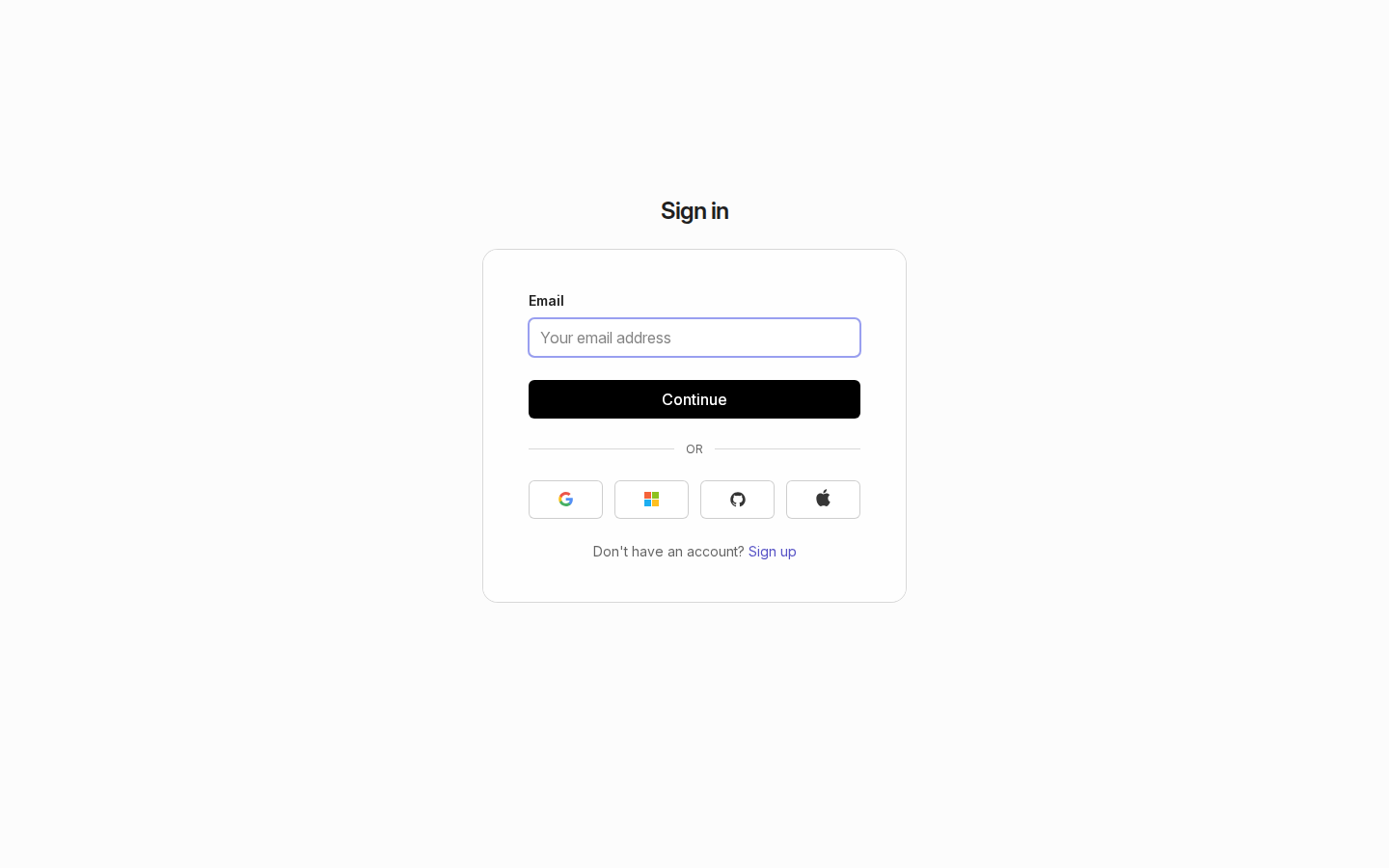
Sign in
From any Aidealy URL, clicking sign-in (or visiting any authenticated page) redirects you to a WorkOS-hosted login form. Enter your work email and continue — WorkOS handles the rest, including SSO if your company has it configured. There's no separate Aidealy password to remember.
Once you've signed in, you're returned to the Aidealy app and dropped onto your dashboard.
Accept an invitation
- 1
Open the invitation link
If a teammate has invited you, you'll receive an email with a personalised link. Click the link to land on the Aidealy invitation page. If you're not signed in yet, you'll be prompted to authenticate first.
- 2
Review the invitation details
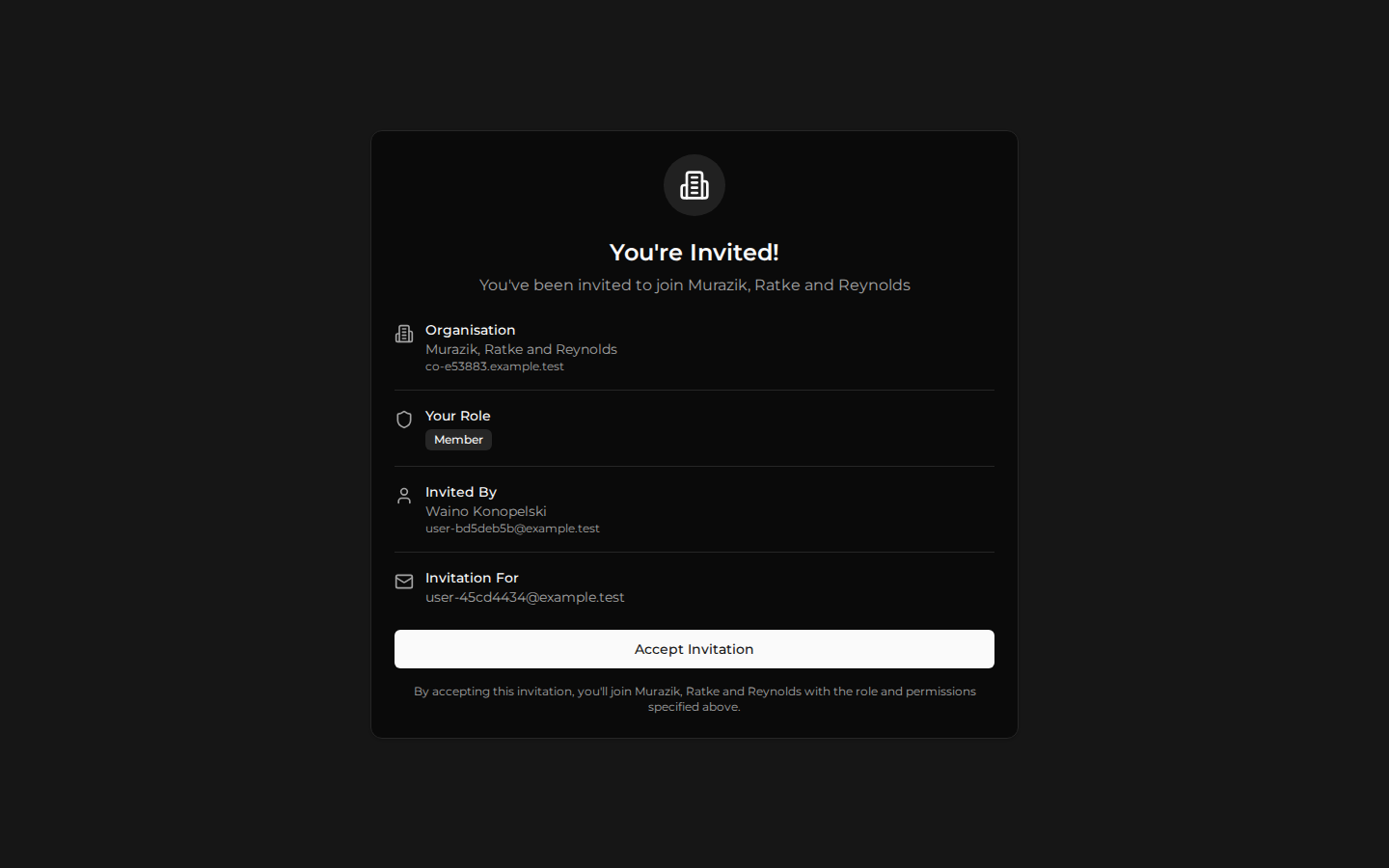
The page shows you which organisation you're being invited to, who invited you, and which role you'll have. Take a moment to confirm you recognise the organisation name and inviter before accepting.
- 3
Accept and continue
Click Accept invitation. Your account is added to the organisation and you're forwarded to the dashboard with access to that workspace.
Multiple invitations?
If you've been invited to several organisations, accept them one at a time from each email link. You can switch between organisations from the workspace switcher in the top bar once you're signed in.